Headings
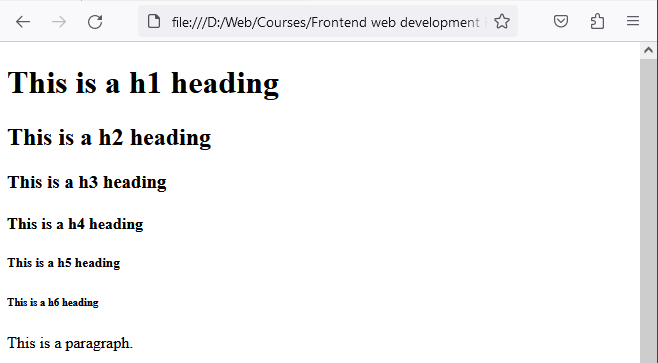
HTML provides six levels of headings, ranging from <h1> (most important) to <h6> (least important). Headings help create a clear content hierarchy, making pages easier to read for users and easier to understand for search engines.
Example
<h1>This is a h1 heading</h1>
<h2>This is a h2 heading</h2>
<h3>This is a h3 heading</h3>
<h4>This is a h4 heading</h4>
<h5>This is a h5 heading</h5>
<h6>This is a h6 heading</h6>
Key points to understand
- <h1> is usually the main title of the page
- Headings should be used in order, not for styling
- Headings define the structure of your content
Paragraphs
The <p> tag is used to define paragraphs of text. It separates blocks of text and helps maintain readability and organization.
<p>This is a paragraph of text.</p>
Browsers automatically add spacing before and after paragraphs, making text easier to read. Paragraphs should be used for regular text content, not for headings or page layout.
Headings and paragraphs together
Headings introduce topics, while paragraphs explain them. These two elements work together to form the core of readable HTML documents.
Lists
HTML offers two types of lists: ordered lists (<ol>) and unordered lists (<ul>). Ordered lists are used for items with a specific order or sequence, while unordered lists are used for items without a particular order. Each list item is defined using the <li> tag.
Lists are commonly used for:
- Navigation menus
- Feature lists
- Steps or instructions
Example:
<ul>
   <li>Item 1</li>
   <li>Item 2</li>
   <li>Item 3</li>
</ul>

HTML Lists will be explained in detail in the following lessons.
Tables
Tables (<table>) are used to organize tabular data. They consist of rows (<tr>) and cells (<td>). Tables are used specifically to present structured, tabular data such as rows and columns of related information.
How tables work
- <table> defines the table
- <tr> defines a row
- <td> defines a cell
Example:
<table>
   <tr>
      <td>Cell 1</td>
      <td>Cell 2</td>
   </tr>
   <tr>
      <td>Cell 3</td>
      <td>Cell 4</td>
   </tr>
</table>

HTML tables will be explained in detail in the following lessons.
Divs
The <div> element is a versatile block-level container that allows you to group and style sections of your webpage. It is primarily used to group related elements and create logical sections for styling and layout.
<div>
   <h2>Section Title</h2>
   <p>This is another paragraph inside a div.</p>
</div>
Why divs are useful
- Group related content
- Apply styles to sections
- Create layouts (with CSS)
Divs are one of the most commonly used HTML elements in real-world projects.
Exercise:
Let's incorporate these elements into an example:
<!DOCTYPE html>
<html>
<head>
   <title>Basic HTML Elements</title>
   <style>
      h1 {
         color: blue;
      }
      p {
         font-style: italic;
      }
   </style>
</head>
<body>
   <h1>Welcome to Basic HTML Elements!</h1>
   <p>This is a paragraph of text.</p>
   <ul>
      <li>Item 1</li>
      <li>Item 2</li>
      <li>Item 3</li>
   </ul>
   <table>
      <tr>
         <td>Cell 1</td>
         <td>Cell 2</td>
      </tr>
      <tr>
         <td>Cell 3</td>
         <td>Cell 4</td>
      </tr>
   </table>
   <div>
      <h2>Section Title</h2>
      <p>This is another paragraph inside a div.</p>
   </div>
</body>
</html>
This code will render the following when opened in a browser.
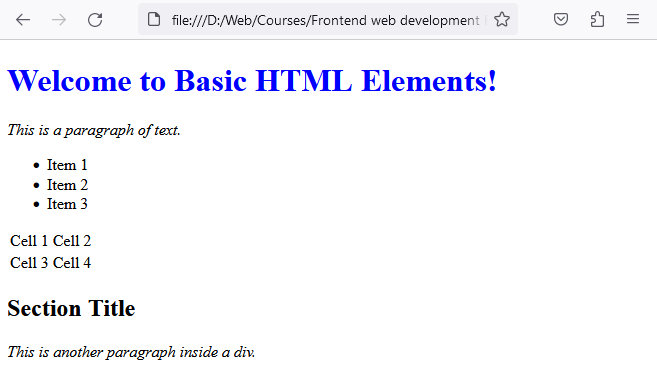
In this example, we've used various HTML elements to structure and present content. We've applied basic styles using the <style> tag within the <head> section to color the <h1> element blue and make the <p> element italic.
Hands-On Exercise: Putting It All Together
Let’s combine multiple HTML elements into one complete example.
<!DOCTYPE html>
<html>
<head>
   <title>Basic HTML Elements</title>
   <style>
      h1 {
         color: blue;
      }
      p {
         font-style: italic;
      }
   </style>
</head>
<body>
   <h1>Welcome to Basic HTML Elements!</h1>
   <p>This is a paragraph of text.</p>
   <ul>
      <li>Item 1</li>
      <li>Item 2</li>
      <li>Item 3</li>
   </ul>
   <table>
      <tr>
         <td>Cell 1</td>
         <td>Cell 2</td>
      </tr>
      <tr>
         <td>Cell 3</td>
         <td>Cell 4</td>
      </tr>
   </table>
   <div>
      <h2>Section Title</h2>
      <p>This is another paragraph inside a div.</p>
   </div>
</body>
</html>
This example shows how different HTML elements work together to structure a page. Basic styling is applied using the <style> tag, which you’ll explore more deeply when learning CSS.
Span
The <span> element is a versatile inline container that allows you to group and style specific sections of text or inline elements. It is primarily used to target and style specific parts of text or inline content without affecting layout.
Important behavior
- <span> does not create a new line
- It does not break text flow
- It is commonly used for inline styling or scripting
<p>
    HTML is <span style="color:red">awesome</span>!
    <span style="color:red">Span elements</span>
    can be used for inline styling.
</p>

In this example, we used <span> elements to color some of the paragraphs text into the color red. Notice that since the span element is an inline level element it does not disrupt the text flow.
Block and inline elements
Block-Level Elements
- Block-level elements start on a new line and occupy the full width available by default.
- Examples of block-level elements include <div>, <p>, <h1> to <h6>, <ul>, <li>, and <section>.
- Block-level elements create a visual block or box-like structure.
- Block-level elements can contain other block-level and inline-level elements.
- They are commonly used for structuring and grouping content, creating sections, and adding vertical spacing.
Inline-Level Elements
- Inline-level elements do not start on a new line and only occupy the necessary width to render their content.
- Examples of inline-level elements include <span>, <a>, <strong>, <em>, <img>, and <input>.
- Inline-level elements flow within the surrounding text and do not create line breaks.
- Inline-level elements cannot contain block-level elements but can contain other inline-level elements.
- They are commonly used for styling or adding emphasis within a line of text or to create inline links or images.
It's worth noting that the display behavior of elements can be modified using CSS properties such as display. For example, a block-level element can be changed to behave like an inline-level element by setting display: inline, and vice versa.
Understanding the differences between block-level and inline-level elements helps in structuring and styling web content effectively.
HTML Comments
Comments in HTML allow you to leave notes in your code that are ignored by the browser. They can be useful for leaving notes to yourself or other developers, explaining your code, or temporarily disabling a piece of code.
<!-- This comment explains what the following code does -->
<p>This paragraph contains some text.</p>
Congratulations on mastering the basics of HTML elements! Keep practicing and exploring the possibilities of these foundational building blocks.
By incorporating these HTML elements into your webpages, you can create well-organized and visually appealing content. In the next lecture, we'll delve into HTML attributes and learn how to enhance the functionality and styling of HTML elements.
Conclusion
You’ve now learned the core HTML elements used to structure nearly every web page.These elements form the foundation of every webpage, and you’ll use them constantly as you build more complex projects.
In the next lesson, you’ll learn about HTML attributes and how they add meaning and behavior to elements