CSS Positioning
CSS offers the position property, which helps to define how an element is positioned on a page. It can have one of the following values:
- Static: This is the default value. Elements render in order, as they appear in the document flow.
- Relative: Relative means the element stays in the normal flow, but you can nudge it visually.
For example, left: 20px moves the element 20px to the right (because you're pushing it away from the left edge). - Fixed: The element is positioned relative to the browser window. Will not move when the page is scrolled.
- Absolute: The element is positioned relative to the nearest positioned ancestor (instead of the viewport like fixed). However; if an absolute positioned element has no positioned ancestors, it uses the document body, and moves along with page scrolling.
- Sticky: The element is positioned based on the user's scroll position. It is positioned relative until a given offset position is met in the viewport - then it "sticks" in place (like position: fixed).
Example syntax:
div {
  position: static | relative | fixed | absolute | sticky;
}
The top, right, bottom, and left properties only work when position is relative, absolute, fixed, or sticky. They do nothing on position: static.
Static Positioning
With the position: static; rule, elements are positioned according to the normal flow of the document. The top, right, bottom, left, and z-index properties have no effect.
div {
  position: static;
}
This div will follow the normal document flow. In other words this is the default position value of elements.
Relative Positioning
With the position: relative; rule, elements are positioned according to the normal flow of the document. Offsetting the element using top, right, bottom, or left properties does not affect the position of other elements.
HTML
<fieldset class="natural">
   <legend>
       Natural position
   </legend>
   <div class="relative">Relative element</div>
</fieldset>
CSS
.natural {
    border: 1px dashed powderblue;
    padding: 20px 0;
}

.relative {
    position: relative;
    left: 50px;
    background: lightblue
}
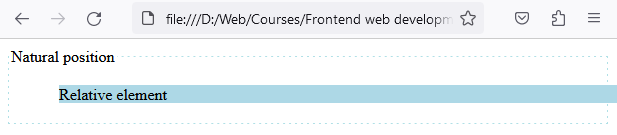
This div will move 50px from the left from its normal position.
Important Detail: Relative Keeps Its Original Space
When you use position: relative, the element moves visually, but it still keeps its original place in the document flow.
That means other elements behave as if the element never moved — which is why relative positioning is often used for small offsets and fine-tuning.
Absolute Positioning
With the position: absolute; rule, the element is positioned relative to its first positioned (not static) ancestor element. If no positioned ancestors are found, it is positioned relative to the initial containing block (usually the viewport). The element is taken out of the normal flow, affecting the position of other elements.
To summarize:
- An absolute element positions itself relative to the nearest ancestor that has a position other than static.
- If no such ancestor exists, it positions relative to the page/document.
HTML
<div class="relative">
  <div class="absolute">Absolute element</div>
</div>
CSS
div.relative {
  position: relative;
  top: 20px;
  right: 20px;
  width: 400px;
  height: 200px;
}

div.absolute {
  position: absolute;
  top: 80px;
  right: 0;
  width: 200px;
  height: 100px;
}
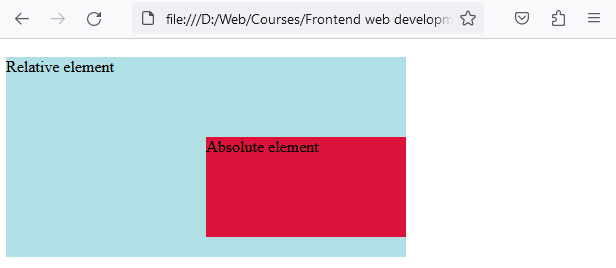
In this example, .relative moves right and down 20px from where it would normally be. .absolute is positioned 80px from the top of the first parent element that has a position other than static, and right 0px from the same.
Absolute Elements Can Overlap (Because They Leave the Flow)
Because absolutely positioned elements are removed from the normal document flow, other elements act like the absolute element does not exist.
This is why absolute positioning is great for things like:
- badges (like “NEW” in a corner)
- icons inside inputs
- dropdown menus
- overlays and modals
But it can also cause overlap if used for layout incorrectly.
Fixed Positioning
With the position: fixed; rule, the element is positioned relative to the browser window or viewport. It will stay fixed on the screen when the user scrolls. The element is removed from the normal document flow.
div {
  position: fixed;
  bottom: 0;
  right: 0;
}
This div will be positioned at the bottom-right corner of the viewport. And will move while scrolling.
Sticky Positioning
With the position: sticky; rule, the element is treated as relative positioned until it crosses a specified point, then it is treated as fixed positioned. Functions like a combination of relative and fixed positioning.
div.sticky {
  position: sticky;
  top: 0;
  background-color: grey;
}
This div will "stick" to the top of the viewport when you scroll past it.
Sticky Common Gotchas
If position: sticky doesn’t work, it’s usually because of one of these:
- You forgot to set a threshold like top: 0
- The element’s parent has overflow: hidden or overflow: auto
- The parent container isn’t tall enough for sticky behavior to be noticeable
Sticky needs scrolling space to “activate”.
Stacking Order (z-index)
When elements overlap, the z-index property can determine which one covers the other. An element with a higher z-index will be in front of an element with a lower z-index.
z-index
div {
  position: absolute;
  left: 0px;
  top: 0px;
  z-index: -1;
}
This div will be positioned behind other elements, because of its negative z-index.
When z-index Works
z-index only works on elements that are “stackable”, meaning:
- position: relative | absolute | fixed | sticky
- (and often flex/grid items too)
If an element is position: static, setting z-index usually won’t do anything.
Higher z-index wins — but only inside the same stacking context
If z-index feels like it “doesn’t work”, it’s often because the element is inside a different stacking context.
A new stacking context is created by things like:
- position + z-index
- opacity less than 1
- transform
- filter
- etc.
So sometimes you don’t need a bigger number — you need the element to be in the right stacking context.
Practical Tip
Use small values like 1, 10, 100 rather than 999999. If you need huge numbers to make it work, it usually means there’s a stacking-context issue.
Common Beginner Mistakes
- Using top/left with position: static and wondering why nothing happens
- Using absolute for layout instead of for overlays/icons/badges
- Forgetting the parent needs positioning for absolute reference
- Assuming z-index always works (when the element isn’t positioned)
- Sticky “not working” because the parent has overflow: hidden