Basic Table Structure
Tables in HTML are created using the <table> element. Inside the <table> element, we have rows defined by the <tr> (table row) element. Within each row, we define table headers using the <th> (table header) element or table cells using the <td> (table data) element.
- <tr> defines a table row
- <th> defines a header cell
- <td> defines a data cell
A table is always built row by row, even when it visually looks like columns.
Example:
<table>
    <tr>
       <th>Header 1</th>
       <th>Header 2</th>
    </tr>
    <tr>
       <td>Data 1</td>
       <td>Data 2</td>
    </tr>
    <tr>
       <td>Data 3</td>
       <td>Data 4</td>
    </tr>
 </table>

How this table works
- The table has two columns
- The first row defines column headers
- The remaining rows contain data
Each row must contain the same number of cells to keep the table aligned correctly.
Table Headers
Table headers (<th>) are used to define the headings of each column in a table. They help provide context and improve the readability of the table.
By default:
- Header text is bold
- Header text is centered
Example:
<table>
    <tr>
       <th>Name</th>
       <th>Email</th>
       <th>Phone</th>
    </tr>
    <tr>
       <td>John Doe</td>
       <td>johndoe@example.com</td>
       <td>123-456-7890</td>
    </tr>
    <!-- More rows... -->
 </table>

In this example, the first row contains table headers for the Name, Email, and Phone columns.
Why table headers matter
- Improve readability
- Provide context for data
- Help users understand table structure
- Prepare tables for accessibility improvements later
Table Cells
Table cells (<td>) hold the actual data within a table. Each cell corresponds to a specific row and column intersection. Table cells provide the content for each column in the table.
Example:
<table>
    <tr>
       <th>Name</th>
       <th>Email</th>
       <th>Phone</th>
    </tr>
    <tr>
       <td>John Doe</td>
       <td>johndoe@example.com</td>
       <td>123-456-7890</td>
    </tr>
    <!-- More rows... -->
 </table>
In this example, the second row contains table cells with data for the Name, Email, and Phone columns.
Important concepts
- Each <td> belongs to a specific row
- Cells align automatically under their headers
- The browser handles layout, spacing, and alignment by default
Understanding this relationship between rows, headers, and cells is key to building clean tables.
Styling Tables
You can customize the appearance of tables using CSS. By applying CSS styles to the <table>, <th>, and <td> elements, you can change the table's layout, font, color, spacing, and more.
Example CSS:
table {
   width: 100%;
   border-collapse: collapse;
}

th, td {
   padding: 8px;
   border: 1px solid black;
}

th {
   background-color: #f2f2f2;
}

td {
   text-align: center;
}
This example shows the most common table styling techniques you’ll use as a beginner.
What this styling does
- Makes the table span the full width of its container
- Removes double borders between cells
- Adds spacing inside cells
- Highlights header rows
- Centers text in data cells
This example demonstrates how CSS enhances tables without changing their HTML structure.
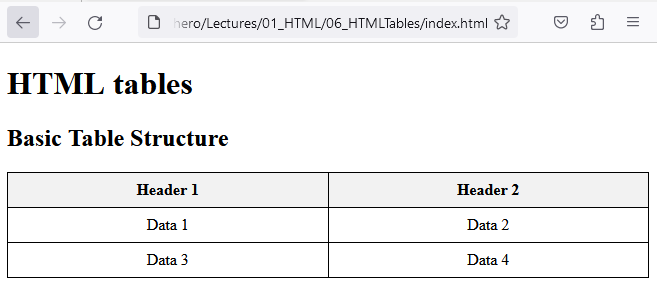
By customizing the styles of your tables, you can match them to the design and aesthetics of your webpages.
Tables are a versatile tool for displaying tabular data on your webpages.
Conclusion
HTML tables are a powerful way to present structured data clearly and efficiently. By understanding table structure, headers, rows, and cells, you can create tables that are easy to read and easy to maintain.
As you continue learning HTML, you’ll build on this foundation by adding forms and interactive elements that allow users to input and submit data.
In the next lesson, you’ll learn about HTML forms, which introduce user interaction into your webpages.
This lesson is part of our complete Learn HTML guide.
When to Use Tables (Important Best Practice)
Tables should be used only for tabular data — information that logically fits into rows and columns.
✔️ Good use cases:
- Schedules
- Price comparisons
- Contact lists
- Data reports
❌ Avoid using tables for:
- Page layout
- Positioning elements
- General page structure
Layout should be handled using CSS, not tables.