Centering Block Level Elements Horizontally
If you have a block level element (like a div), and you want to center it horizontally, you can use auto margins. However, this requires the element to have a set width:
HTML
<div class="center-block">Centered block</div>
CSS
.center-block {
    border: 3px dashed powderblue;
    margin-left: auto;
    margin-right: auto;
    width: 50%; /* or any specific width */
}
For automatic left and right margins, you can also use:
margin: 0 auto;

If the element is not block-level by default (for example, an <img> is inline by default), you can convert it into a block element so that auto margins can work:
.center-block {
    display: block;
}
Why the width matters
Auto margins only work when the element doesn’t take the full width of its container.
A block element (like a <div>) is normally width: 100%, so there is no leftover space on the left or right for the auto margins to “share”.
Once you give it a smaller width (like 50% or 400px), CSS has extra space to distribute — and margin-left: auto and margin-right: auto will split that space evenly.
Centering Elements Vertically
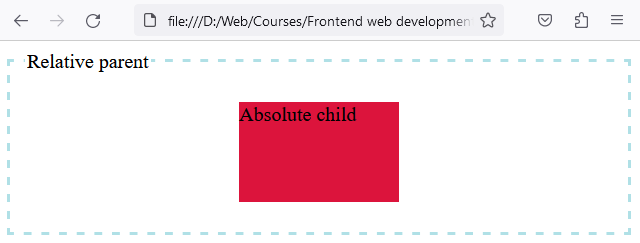
In order to center an element vertically, you will need to use positioning.
The idea behind vertical centering
We’ll use a very common trick:
- Push the element down so its top edge is at 50% of the parent height:
- top: 50%
- But now the element is too low, because we centered its top, not its middle.
- So we pull it back up by half of its own height:
- transform: translateY(-50%)
This makes the element’s center align perfectly with the parent’s center.
HTML
<fieldset class="relative-parent">
   <legend>
         Relative parent
   </legend>
   <div class="absolute-child">Absolute child</div>
</fieldset>
CSS
.relative-parent {
    position: relative;
    width: 100%;
    height: 160px;
    border: 3px dashed powderblue;
}

.absolute-child {
    width: 160px;
    height: 100px;
    margin: 0 auto;
    position: absolute;
    top: 50%;
    left: 0;
    right: 0;
    transform: translateY(-50%);
    background-color: crimson;
}
Why the parent must be position: relative
The child uses position: absolute, which means it will position itself relative to the nearest positioned ancestor.
By setting: .relative-parent { position: relative; } we are not moving the parent — we are simply making it the reference frame for the absolute child.
Bonus: This example also centers horizontally
Notice how we also center the child horizontally:
- left: 0; right: 0; makes the child stretch across the parent as a positioning area
- width: 160px gives it a fixed width
- margin: 0 auto then centers that fixed-width element inside the available horizontal space
So this example ends up centering both vertically and horizontally.
Common Mistakes When Centering
- Trying margin: 0 auto without setting a width (on block elements that are full width)
- Using top: 50% without transform: translateY(-50%) (you center the top edge, not the middle)
- Forgetting to set the parent to position: relative (the absolute child then centers relative to the page instead)
- Expecting auto margins to work on inline elements without display: block