JavaScript HTML DOM - Document Object Model
Every webpage is located within a browser window which can be considered an object. The Document Object represents the HTML document that is displayed in that window. The Document Object has various properties related to other objects that allow access to and modification of the document's content.
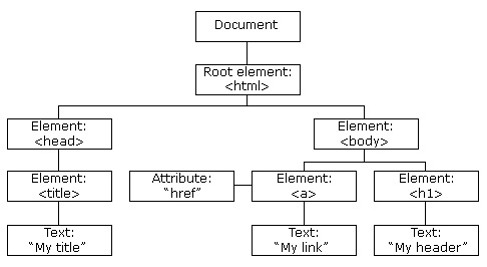
The way to access elements within an HTML document using JavaScript is through the HTML Document Object Model (DOM). The DOM is created when the web browser loads a page. The objects in the model are organized in a hierarchical structure that applies to the organization of objects in the HTML document.
With the Document Object Model, it is possible with JavaScript to:
- Change all HTML elements on the page
- Change all HTML attributes on the page
- Change all CSS styles on the page
- Delete existing HTML elements on the page
- Add new HTML elements and attributes
- Respond to all existing events on the page
- Create new events on the page
The HTML DOM is a standard object model and programming interface for HTML that defines:
- HTML elements as objects
- Properties of HTML elements
- Methods to access all HTML elements
- Events for all HTML elements
In other words, the HTML DOM is a standard for retrieving, changing, adding or deleting HTML elements.
HTML DOM Document Object
When an HTML document is loaded into a web browser, it becomes a Document Object. Within the HTML Document Object Model, everything is a node.
The Document Object is the original node of the HTML document, and the parent of all other nodes which holds all other objects. In other words, the Document Object represents the web page. If it is necessary to retrieve some element within the HTML document, it always starts with access to the Document Object.
document.getElementById("identifier");
HTML DOM methods and properties
HTML DOM methods are actions that can be performed on HTML elements. The properties of these methods are the values of the HTML elements that can be set or changed.
As previously mentioned, the HTML Document Object Model can be accessed using JavaScript where HTML elements are defined as objects. All properties and methods of individual objects serve as the programming interface.
A property is a value that can be retrieved or set, while a method is an action that can be performed.
<!DOCTYPE html>
<html>
  <head>
    <meta charset="utf-8" />
    <title></title>
  </head>
  <body>
    <p id="paragraph"></p>
    <script>
      document.getElementById("paragraph").innerHTML = "Hello World!";
    </script>
  </body>
</html>
In the example above, the content of the <p> element with the identifier "paragraph" was changed. The element is fetched using the getElementById() method and the content is changed using the innerHTML property.
Within the Document Object, elements can be accessed using several different methods:
- document.getElementById('identifier') - access by identifier
- document.getElementsByTagName('tag-name') - access by tag name
- document.getElementsByClassName('class-name') - access by class name
There are other ways to retrieve elements but they will not be covered in the manual due to potential issues with support for older versions of web browsers.
19.2.1. Changing HTML
The HTML DOM allows JavaScript to change the content of HTML elements. As you have already seen, JavaScript can insert content directly using the document.write() function.
<!DOCTYPE html>
<html>
  <body>
  <script>
    document.write('Hello World!!!');
  </script>
  </body>
</html>
To change the content within HTML elements, the innerHTML property is used on the selected element. To change the content use the following syntax:
document.getElementById('identifier').innerHTML = 'New content';
The following example changes the content of the <h1> element:
<!DOCTYPE html>
<html lang="en">
  <head>
    <meta charset="utf-8" />
    <title></title>
  </head>
  <body>
    <h1 id="title"></h1>
    <script>
     var title = document.getElementById("title");
      title.innerHTML = "Hello World!";
    </script>
  </body>
</html>
In the example, the element is fetched using the id selector and stored in a variable. After storing in a variable, the innerHTML property is called on the variable to which the new content is passed.
It is also possible to change the values of attributes. To do this, use the following syntax:
document.getElementById('identifier').attributeName = 'New value';
In the following example, the value of the src and alt attributes of the <img> element are changed:
<!DOCTYPE html>
<html>
  <body>
    <img id="myPicture" src="picture.jpg" alt="picture">
    <script>
      document.getElementById("myPicture").src = "background.jpg";
     document.getElementById("myPicture").alt = "background";
    </script>
  </body>
</html>
19.2.2. Changing CSS
In addition to the ability to change the content of HTML elements, JavaScript also allows changing CSS styles. To change a specific CSS style, the .style property is used on the selected element, followed by the name of the property you want to change.
The syntax for changing a CSS style is as follows:
document.getElementById(id).style.propertyName = "value";
In the following example, the background color and the text color of the element with the identifier "paragraph" are changed.
<!DOCTYPE html>
<html>
  <body>
    <p id="paragraph">Paragraph text</p>
    <script>
      document.getElementById("paragraph").style.backgroundColor="blue";
      document.getElementById("paragraph").style.color="white";
    </script>
  </body>
</html>

HTML DOM Events
JavaScript code can be executed after triggering a specific event, for example, a mouse click on an element. To execute a certain block of code when an event is triggered, JavaScript code is added to the HTML element as an attribute.
<!DOCTYPE html>
<html>
  <body>
    <h1 onclick="this.innerHTML='Changed text!'">Initial text!</h1>
  </body>
</html>
Initially, the content of the <h1> element is set to "Initial text!".

After clicking on the <h1> element, the content changes to “Changed text!”.

You can also execute a specific function on a specific event. In the following example, the previous example is adapted to do the same functionality using a function.
<!DOCTYPE html>
<html>
  <body>
    <h1 onclick="changeText(this)">Initial text!</h1>
    <script>
      function changeText(id) {
          id.innerHTML = "Changed text!";
      }
    </script>
  </body>
</html>
Events can also be captured using the HTML Document Object Model (DOM), by calling the event name as a property on the selected element as follows:
<!DOCTYPE html>
<html>
  <body>
    <button id="myButton">Button</button>
    <p id="paragraph"></p>
    <script>
      document.getElementById("myButton").onclick = showDate;

      function showDate() {
          document.getElementById("paragraph").innerHTML = Date();
      }
    </script>
  </body>
</html>
In the example above, a function named showDate() is added to the HTML element with the identifier "myButton". The function will execute when the <button> element is clicked.
The following table contains a list of frequently used events and their explanations:
- onload: It triggers when a web page is loaded
- onunload: It triggers when the user leaves the page
- onchange: It triggers when a change occurs on an <input> element
- onmouseover: It triggers when the mouse pointer passes over an element
- onmouseout: It triggers when the mouse pointer leaves an element
- onclick: It triggers by clicking the mouse on a certain element
- onmousedown: It triggers when the mouse button is held down
- onmouseout: It triggers when the mouse button is released
In addition to these, there are many other events such as capturing keyboard keys, focus on <input> elements, etc. that you can find on the following website: