What is CSS?
CSS is a stylesheet language used to style HTML. HTML provides structure and meaning (headings, paragraphs, lists), while CSS controls presentation—colors, spacing, alignment, fonts, and layout.
When a browser loads a page, it reads the HTML first and then applies CSS rules to determine how the content is displayed.
Here's a basic example of how CSS is used:
<!DOCTYPE html>
<html>
   <head>
      <style>
         body {
            background-color: powderblue;
         }
         h1 {
            color: blue;
         }
         p {
            color: red;
         }
      </style>
   </head>
   <body>
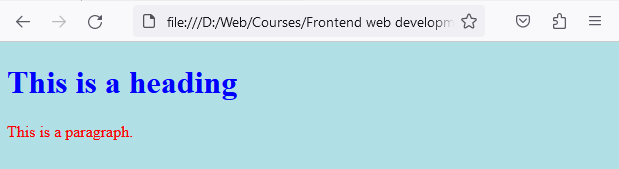
      <h1>This is a heading</h1>
      <p>This is a paragraph.</p>
   </body>
</html>
This code will render the following way when you view it in a browser:
Why Use CSS?
CSS isn’t just “making things pretty”— it solves real problems in real projects:
1) Consistency across pages
With CSS, you can style headings, buttons, and layouts the same way everywhere.
2) Easier maintenance
Instead of changing 50 HTML pages, you change one stylesheet.
3) Better user experience
CSS improves readability (font size, spacing), accessibility (focus styles), and responsive design (mobile layouts).
4) Cleaner HTML
HTML stays focused on structure and meaning. CSS handles presentation.
Basic CSS Syntax
A CSS rule set has two parts: a selector and a declaration block. The selector targets the HTML element you want to style, and the declaration block contains one or more declarations separated by semicolons. Each declaration is made of a property and a value separated by a colon.
selector {
  property: value;
}
Let's see examples of inline, internal, and external CSS.
Applying CSS to HTML
There are three ways you can apply CSS to an HTML document:
- Inline CSS: Styles are applied directly on an element using the style attribute. Inline styles have high specificity, so they should be used sparingly for one-off changes.
- Internal CSS: Styles are written inside a <style> block in the document’s <head>. Useful for single-page demos, but harder to maintain as a project grows.
- External CSS: Styles live in a separate .css file and are linked using <link>. This is the most common and scalable approach.
Inline CSS
Inline CSS is used to apply a unique style to a single HTML element. It uses the style attribute of an HTML element. This method of insertion applies the CSS rules directly into the HTML file.
An example of inline CSS is as follows:
<p style="color:blue;">This is a paragraph with inline CSS.</p>

However, inline CSS is rarely used because it mixes HTML with CSS, making the document harder to read and maintain.
Want to understand why inline styles often override others? See CSS Specificity.
Internal CSS
Internal CSS, also known as embedded CSS, is used to apply CSS to a whole HTML page. The CSS rules are put in a <style> block in the <head> section of the HTML file.
An example of internal CSS is as follows:
<!DOCTYPE html>
<html>
    <head>
      <style>
        p {
          color: red;
        }
      </style>
    </head>
    <body>
      <p>This is a paragraph with internal CSS.</p>
    </body>
</html>
This will be rendered in the browser like this:

In this case, all the <p> tags on the page would be styled according to the CSS rules inside the <style> tags. Internal CSS is more manageable than inline CSS but still doesn't provide the reusability of external CSS.
External CSS
External CSS involves creating a separate .css file and linking it to your HTML document. This method of insertion aids in minimizing code redundancy and promotes reusability. A single external stylesheet can control the appearance of multiple HTML pages, making it easier to maintain and modify the styling of numerous pages at once.
Here's an example of how to link to an external CSS file:
1. First, create an external CSS file in your project folder (for example: style.css).
p {
  color: green;
}
2. Then, link this CSS file to your HTML document.
<!DOCTYPE html>
<html>
    <head>
      <link rel="stylesheet" href="style.css">
    </head>
    <body>
      <p>This is a paragraph with external CSS.</p>
    </body>
</html>

CSS Comments
CSS comments are used to explain code and are ignored by the browser. They start with /* and end with */. Anything between these will be ignored by the browser.
<style>
    /* This is a single-line comment */


    /*
     This is a
     multi-line comment
    */
</style>
Resetting Default CSS
Browsers apply their own default CSS to HTML elements, which can cause small layout and spacing differences between browsers before you write any CSS.
A CSS reset removes or neutralizes those defaults so you start from a consistent baseline.
/* Basic CSS Reset */
html, body, h1, h2, h3, h4, h5, h6, p, ol, ul, li, img, table, tr, td, th, input, textarea, button {
  margin: 0;
  padding: 0;
  border: 0;
  font-size: 100%;
  vertical-align: baseline;
}
This example is a simple reset and is by no means exhaustive. Some developers prefer more comprehensive reset scripts, like Eric Meyer’s “Reset CSS” or “Normalize.css,” which preserves useful defaults rather than "unstyling" everything.
The mentioned CSS resets can be found on the following web pages: